Black Screen Before the Binge: Untangling the HDMI Delay Between Your TV and Hulu
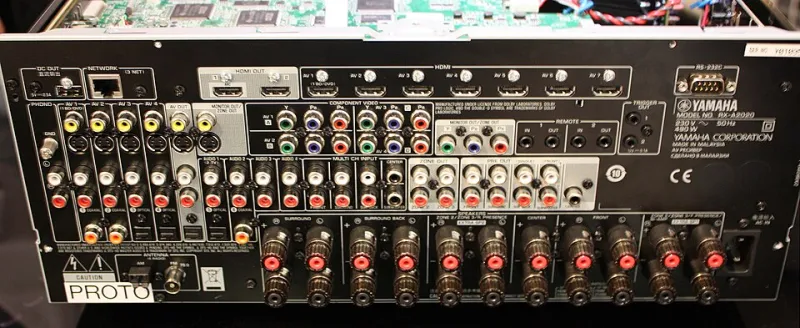
Photo: Michael Movchin, CC BY-SA 3.0, via Wikimedia Commons
Few things make a streaming setup feel older than a black screen that appears before Hulu. You press the app, the TV flashes an input label, the screen goes dark, and for a few seconds nothing happens. Then the Hulu logo appears, and you are supposed to forget the delay. You probably do not.
That pause is usually not Hulu being slow. It is the HDMI chain doing a handshake. Your streaming device, TV, receiver, and any switch or splitter in between have to agree on what they are, what they can display, and whether the content is allowed to play. When that negotiation stumbles, you get a black screen, a flash of input confusion, or an HDCP error. In 2026, with 4K HDR and soundbars everywhere, there are more links in that chain than ever.
What the black screen is actually doing
HDMI is not a one-way pipe. When you switch inputs or wake a device, the TV and source exchange capability data, then authenticate with HDCP, the copy-protection layer that streaming services require. A receiver in the middle adds another handshake. A cheap splitter adds two. A long or old cable can make the whole conversation flaky.
That is why the delay often feels random. The same setup can work fine for a week and then stall after a firmware update, a new soundbar, or a different HDMI port. If you see a message about HDCP or an unauthorized display, treat it as a handshake problem first. Do not start by reinstalling Hulu.
Fix 1: Replace the weakest cable first
Effort: low. Likelihood of success: high.
Cables are the cheapest thing to test and the most common culprit. Use a certified Premium High Speed HDMI cable for 4K at 60Hz, or an Ultra High Speed cable if you are running 4K at higher refresh rates or 8K. Keep the run short if you can. Avoid the mystery cable from the drawer.
Test by connecting the streaming device directly to the TV with a known-good cable. If the black screen disappears, the problem is somewhere in the old cable or the path through your receiver. Replace one cable at a time so you know what fixed it.
Fix 2: Take the receiver out of the video path
Effort: medium. Likelihood of success: high.
Receivers and soundbars are convenient, but video passthrough adds another device that has to complete the handshake. Some receivers process or upscale the signal, which can slow input switching and create HDCP confusion. Connect the streaming device straight to the TV, then send audio to the receiver over eARC or ARC. You keep the surround sound and remove a negotiation step.
If you must route video through the receiver, turn on its passthrough mode, disable unnecessary video processing, and update its firmware. Then test the same input again. A receiver that is two firmware versions behind is a very common source of delayed black screens.
Fix 3: Simplify the power and input order
Effort: low to medium. Likelihood of success: medium to high.
HDMI-CEC is supposed to make devices wake each other and switch inputs automatically. In practice, it can cause the TV to hop to the wrong input while the streamer is still booting. Try a deliberate order: turn on the TV, select the correct HDMI input, wake the streaming device, wait for its home screen, then open Hulu.
If the TV keeps switching away, turn off HDMI-CEC auto-switch in the TV settings. Also check whether the streamer is set to match the TV's resolution automatically. A fixed resolution that the TV does not like can add delay or produce a blank frame during switching.
Fix 4: Enable enhanced HDMI on the TV and match formats
Effort: medium. Likelihood of success: variable.
Many TVs ship with some HDMI ports limited to older bandwidth. Look for a setting called HDMI UHD Color, Input Signal Plus, Enhanced Format, or something similar, and enable it for the port your streamer uses. If HDR is causing the black screen, try setting the streamer to 4K SDR or disabling HDR for that input to see whether the handshake stabilizes.
This fix is variable because it depends on your TV model and the content you watch. It is still worth checking before you buy new hardware. Update the TV firmware, try a different HDMI port, and test again.
Ranked cheat sheet
- Start with the cable and a direct connection to the TV. It is cheap, fast, and solves a surprising number of cases.
- Remove the receiver or splitter from the video path. Keep audio on eARC or ARC.
- Simplify input switching and power-on order. Disable CEC auto-switch if it is hopping around.
- Enable enhanced HDMI on the correct port and match resolution and HDR settings.
When to stop troubleshooting
If every device on the same port shows an HDCP error, suspect the port, the cable, or a failed splitter rather than Hulu. If the problem follows the streaming device to another TV, the device or its power supply is the next suspect. And if you are using a cheap HDMI switch, remove it from the chain before you spend money on anything else. The best fix is often the least glamorous one: fewer links, better cables, and a TV input that is not being asked to guess.